
event.spot logo
event.spot logoWhy Eventspot
Platform
Core Products
Event Management Software
Event Registration Software
Event Ticketing Software
On-Site Badge Printing
Event Check-in Software
Lead Capture & Retrieval
Mobile Event App FEATURED
Event Management
Budget Planner
Speakers & Abstracts Mgmt.
Maps or Floor Plan Builder
Agenda Management
Event Reporting & Analytics
Attendee Engagement
Meetings & Matchmaking
Event Networking App
Gamification
Live Polls & QA
Community Builder
Event AI
NEW
More Platform Tools
Custom Branding & Whitelabeling
Widgets & Embeds
Security and Compliance
Pricing Plans
Request a Demo
Solutions
industries
Non-Profit Organizations
Corporate Events
Education
Information Technologies
Healthcare
Pharma
Retail
Event Agencies
USE CASES
Onsite Event Management
Virtual Exhibitions
Hybrid Events
Community Meetups
Workshops & Trainings
B2B Conferences
Expo and Fairs
Trade Shows
Virtual Job Fairs
Medical Events
Product Launches
Sales Kickoffs
Education Events
Networking Events
Learning & Development
Internal Events
Awards & Recognition
White Label Mobile Apps
Native Event App
Deliver a seamless event experience with your own branded app.
Event Networking App
Empower networking and collaboration within your event.
Lead Scan & Retrieval App
Simplify lead scanning and retrieval for exhibitors and sponsors.
Pricing Plans
Request a Demo
Features
Content Management
Event Website Builder
Agenda Builder
Speaker Profile
News
Event Guide
Social Boost
Live Screen Display
Registration
Event Ticketing
Check-in Software
Abstract Management
Badge Printing
Dynamic Form Builder
Floor Planner
Event Itinerary
Exhibitors & Sponsors
Exhibitor Profile
Sponsored Ads
Lead Scanning
Interactive Maps
Engagement
Event AI
Matchmaking
Chat & Meetings
Social Feed
Community Forum
Poll & Live Q&A
Gamification
Communications
Instant Push Notification
Email Notification
mORE tOOLS
Event Surveys
Analytics & Reporting
Pricing Plans
Request a Demo
Resources
Company
About Eventspot
Security & Compliance
Resources
Knowledge Base
FAQs
Support
Contact Us
Tools
Event QR Code Generator
Sponsorship ROI Calculator
Event Budget Calculator
Event WhatsApp Templates
Pricing Plans
Request a Demo
Pricing
Request a Demo
Contact Us
Request a Demo
Download Eventspot Feature Presentation
Topics

Scans & Check-ins

event.spot Knowledge Base

Setting up Zebra Printer

Eventspot supports most Zebra Desktop Printers with an Ethernet or Wireless communication for onsite badge printing. Here is a step-by-step guide on setting up a Zebra Link-OS Printer (with the reference of the model ZD230) with a Wired Ethernet, Zebra Printer Setup Utility mobile / desktop app and Eventspot iOS app.

enter image description here

‍

Step 1: Connect one end of the Ethernet cable (which will be available in the box of the printer) into the ethernet port of the Zebra printer and the other end of the cable to one of the outlets on the router.

enter image description here

‍

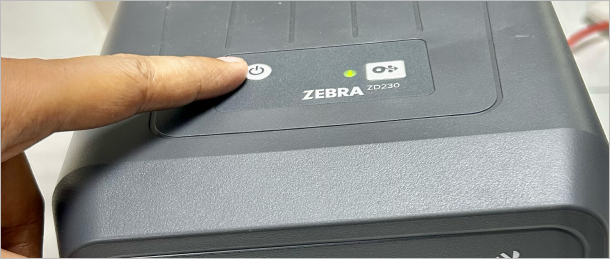
Step 2: Powering up - To start using your Zebra printer, first, connect the power cable to the printer, then press the power button located on the top of the printer.
enter image description here

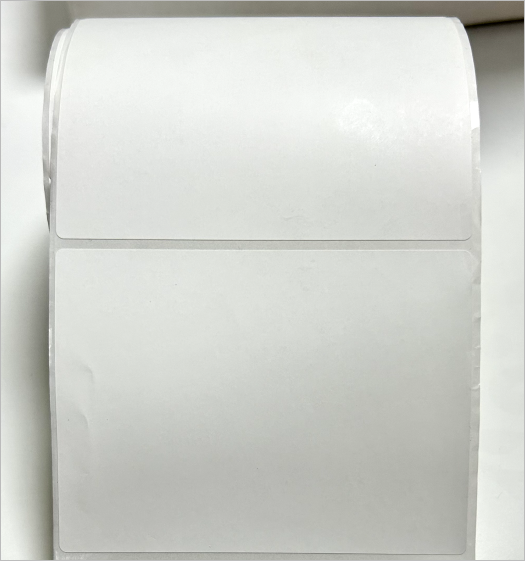
Step 3: Now that the printer is on, let's load the paper roll in the printer. You can use a roll of any acceptable size depending on the compatibility of the printer.
enter image description here

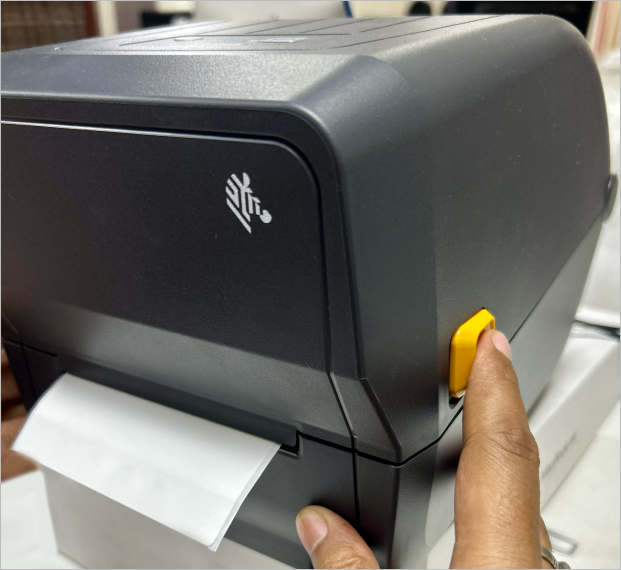
A- Load the badge roll- Pull the side release latches towards yourself to release the lock and then lift the printer cover up.
enter image description here

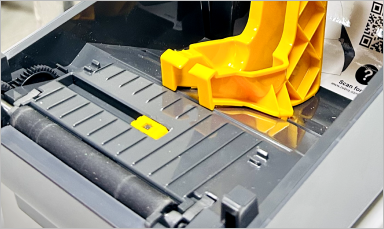
B- Expand the roll holder to fit the roll you will be using. Roll out the paper until it's slightly visible in the print exit area of the printer. Once you are done close the lid and you can manually calibrate the roll using the caliberate button.

enter image description here

C- Adjust the sensor to the right to keep the printing centered.
enter image description here


Step 4
: Configure the printer - Download the Zebra Printer Setup Utility app from the Play Store or App Store. You can also download the desktop app from https://www.zebra.com/gb/en/support-downloads/printer-software/printer-setup-utilities.html#featureforoperatings_1457791078

Now let us start the setup process.

A- Once you have the app installed and the printer is already switched on, the first step would be to discover the printer.

enter image description here

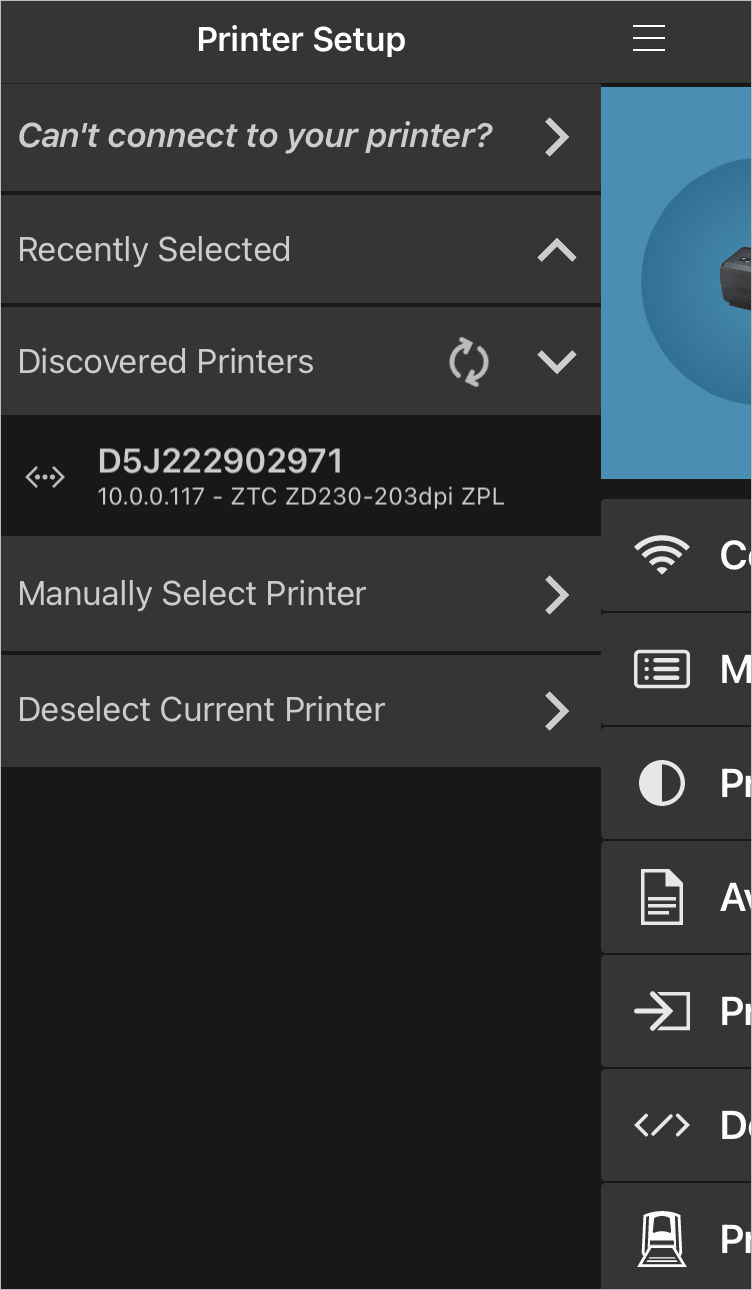
Tap on Discover Printers, to start detecting the printer. Once the printer is discovered, you will find it under 'Discovered Printers' in the side menu.
enter image description here

Note: Write down the IP address which will be required later on Eventspot app for further configuration.

B- Tap on the discovered printer to connect it.

enter image description here

C- Once it is connected, you can configure the Media Settings.

enter image description here

This defines the roll that you will be using. It displays the Current Media type but it is suggested that you configure it by selecting the Media Settings option and update the width and length of the badge in inches and tap on Next. You will see some additinal settings related to the roll, update those configurations according to the roll/media you will be using.

enter image description here

D- To get all the settings in place, tap on Next/Previous button in each step and then Apply Settings once you are done and it will be saved on the printer. The printer will auto calibrate.

enter image description here

E- You can also adjust the print speed and darkness settings from the Print Quality option.

enter image description here

F- Next go to Print Action and tap on Calibrate Media in case you want to calibrate the printer again.

Note: There are other optional settings and options to print demo files too which you may check in case you want to test some prints before finally printing the badges.


Step 5
: Connect with Eventspot - The Zebra printer is all set at this point. The last step would be connecting the Admin App with the printer.

  • Login to Eventspot iOS application with the admin access. Then open the side menu and click on Manage.
__wf_reserved_inherit

‍

  • Go to Dashboard and then select Kiosk Mode.
__wf_reserved_inherit
  • You will get the option to download the attendee database. Always download the latest Database.
    Note:
    If the download does not start automatically, click on Update.
__wf_reserved_inherit
  • Once the database is downloaded, go to Settings (gear icon).
__wf_reserved_inherit
  • Now you can connect the printer with the Eventspot app.
    • Select the printer from the list of supported printers (Zebra here)
__wf_reserved_inherit
  • Tap on search, to get the IP address or input manually (from the printer set up step 4A).
  • You can leave the Port, Resolution and Rotation as it is unless it is set to any other value explicitly.
__wf_reserved_inherit
  • Set Rear Camera on in case you want to use the back camera to scan the badges.
  • Set Two Sided Badge on if you want a fanfold badge type and select the roll style.

Note: If you set Single Page Print on, design the badge on a canvas size having half the height of the actual roll height

For eg: If the roll height is of 10 inches, design the badge on height of the 5 inch canvass. The app will automatically adjust to mirror the design on the fold area.

Alternatively if you keep single page off, design the badge on the 10 inch canvas

__wf_reserved_inherit

Finally, you are all set! You will see the the Printer as Online and start printing.

__wf_reserved_inherit

The current compatible Zebra printers include

  • ZD621-HC,
  • ZD621,
  • ZD621R,
  • ZD611-HC,
  • ZD611R,
  • ZD611,
  • ZD510-HC,
  • ZD421C,
  • ZD421C-HC,
  • ZD411-HC,
  • ZD411,
  • ZD410-HC,
  • ZD421,
  • ZD421-HC,
  • ZD410,
  • ZD230

The above list of compatible printers provided is not intended to be exhaustive and is subject to change without prior notice. While we strive to include a wide range of printer models, it is important to understand that compatibility may vary, and support for specific printer models can be modified or discontinued at any time at the company's discretion.

In case you have a printer from a different provider or have issues with your model of Zebra printer, feel free to contact us via our contact page for support.

‍

The future of events
is here.
PLATFORMS
Virtual Event PlatformHybrid Event PlatformIn-person Event PlatformMobile Event AppExpo & ExhibitionEvent Management PlatformEvent Registration PlatformCorporate Event SoftwareTrade Show AppTrade Show Management Software
PRODUCTS
Event Ticketing SoftwareEvent Check-in AppEvent Badge PrintingTicket Sales ReportLead Retrieval AppEvent Networking AppEvent Gamification AppEvent Poll & Q&AEvent Matchmaking AppEvent Concierge Service
RESOURCES
ContactAboutFAQ
OTHERS
Privacy PolicyTerms of UseSite MapSecurity
Eventspot is built with enterprise-grade security
event.spot logo on dark background
© Eventspot 2026. All rights reserved.
FacebookTwitterInstagramLinkedinYouTube icon