
The Live Display feature is one of those things that quietly elevates the on-site experience at your event. It's the screen your attendees glance at between sessions — showing real-time social posts, leaderboards, schedules, or whatever you choose to put up there. Getting it set up well doesn't take long, and once it's running, it keeps the energy in the room going without you having to manage it manually.
Here's how to configure your Live Display settings from the Eventspot Admin Panel.
Log in to your Eventspot Admin Panel, click on Setup in the left-hand menu, then go to Branding and select Live Display. This is where all your display board settings live.

You'll see a list of features that can appear on your display board — things like social walls, leaderboards, schedules, and more. Go through the list and decide which ones make sense for your event. Not everything needs to be on, so pick what's actually going to add value for your audience.

Each feature has a toggle next to it. Click it to switch a feature on or off depending on what you want showing on the board. It's straightforward — on means it'll appear in rotation, off means it won't.

Next to each feature, you'll find an Edit button. Click it to open the settings for that particular feature and customise how it appears on the display board.

Inside the edit panel, you can change the display name of the feature. This is the label that appears on screen, so if you want it to match your event's tone or branding, this is where you make that change.
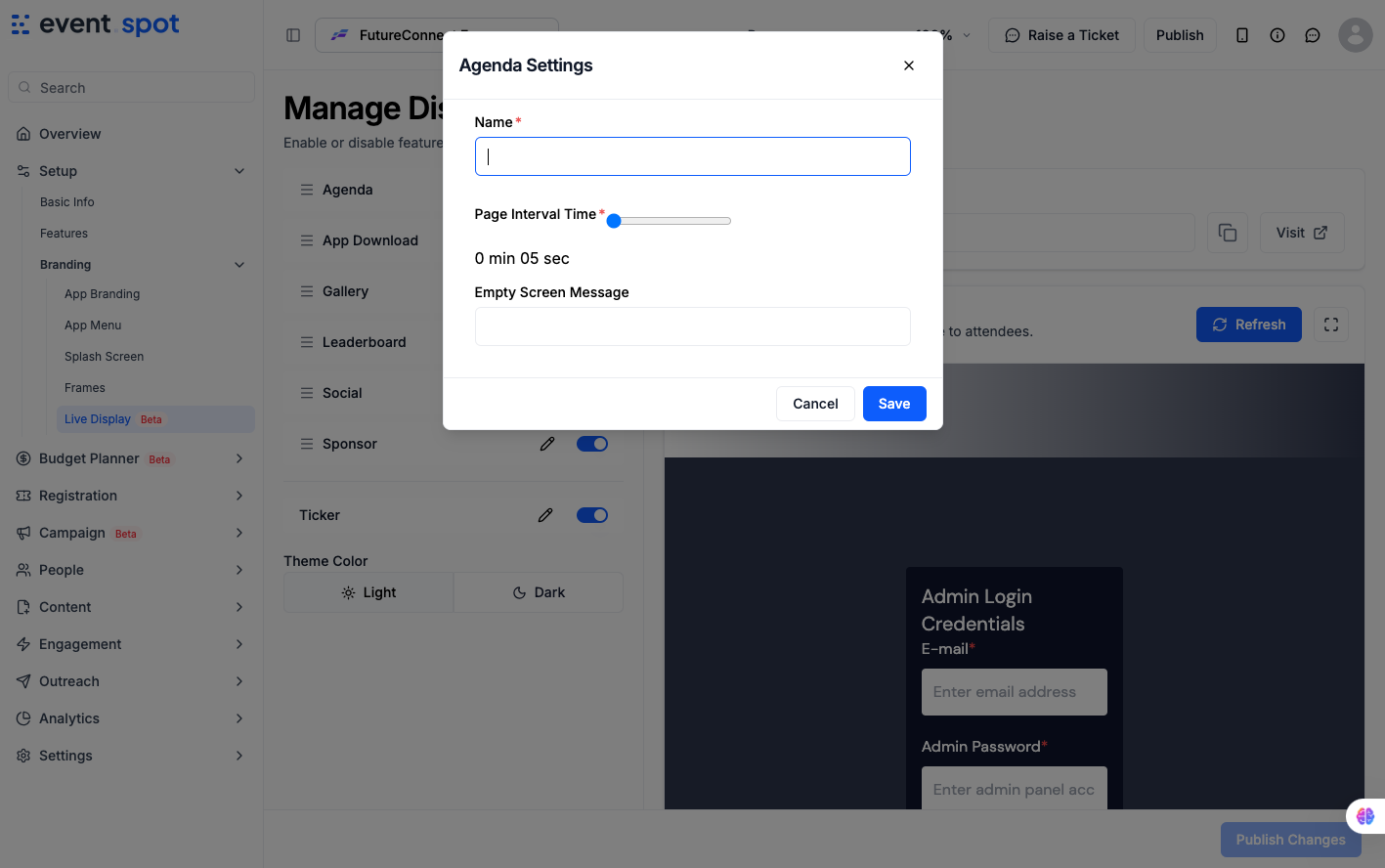
You can control how long each feature stays on screen before rotating to the next one. Set a custom time that feels right for your event — long enough for attendees to actually read what's there, but short enough to keep things moving.

If a feature has no content to show at a given moment, the screen doesn't have to go blank. You can set a custom message to appear in those gaps — a welcome message, a sponsor shoutout, or a simple prompt for attendees to keep engaging.

Once you're happy with the settings for that feature, click Save. Repeat the edit process for any other features you want to customise before moving on.
Back in the main Live Display section, you'll find theme options for how the board looks overall. Pick the one that best fits your event's visual style. The theme affects the background, fonts, and general colour palette of the display.

Before going live, use the preview option to see exactly what your display board will look like with your current settings. This is a good moment to check that the rotation timing feels right and that everything looks the way you intended.

When you're ready to run the display at your event, open the Live Display URL on the screen or device you'll be using and log in with your admin credentials. This activates the board and starts cycling through your selected features.

Once logged in, take a final look at the live board to make sure everything is showing as expected. If anything needs adjusting, you can go back into the admin panel, make the change, save it, and the display will update automatically.
You can show a range of real-time content depending on what features you've enabled, including social media walls, session schedules, leaderboards, attendee check-in stats, and more. The exact options available depend on what's active for your event, but the idea is to keep the display dynamic and relevant throughout the day.
Yes. Any changes you make in the admin panel save and reflect on the live board almost immediately, so you can adjust what's showing, update messages, or swap features in and out as the event progresses without taking the display offline.
If a feature is active but has no content at a given moment, the empty screen message you set in Step 7 will appear instead. This keeps the display looking intentional rather than blank or broken. It's worth setting a message you're happy to leave up for a while, just in case.
Yes. As long as each screen is logged in with your admin credentials and has the Live Display URL open, they'll all show the same content simultaneously. This is handy for larger venues where you want multiple screens around the space showing the same board.
You set the rotation timer individually for each feature in the Edit settings. If you want certain features to stay up longer — like a social wall during a networking break — you can give those a longer timer while keeping others shorter.
Yes, the theme selector lets you change the overall visual style of the board. For more detailed branding customisation such as colours and logos, check the broader Branding section in your admin panel, as some of those settings carry through to the Live Display as well.
No. Once you've logged in to the Live Display on your screen, it runs independently. You only need to go back into the admin panel if you want to make changes to the settings. The display itself will keep cycling through your content without any ongoing input from you.