event.spot Knowledge Base
How To Create Public Meetings?
Public meetings allow any attendee to join without prior approval, making it ideal for open networking or group discussions. Follow the steps below to create and configure a public meeting in your Eventspot event.
Interactive Guide: How To Create Public Meetings?-new (Eshika)
Or check the step-by-step guide
1: Login to Eventspot Admin panel and go to Engagement > Networking > Meetings
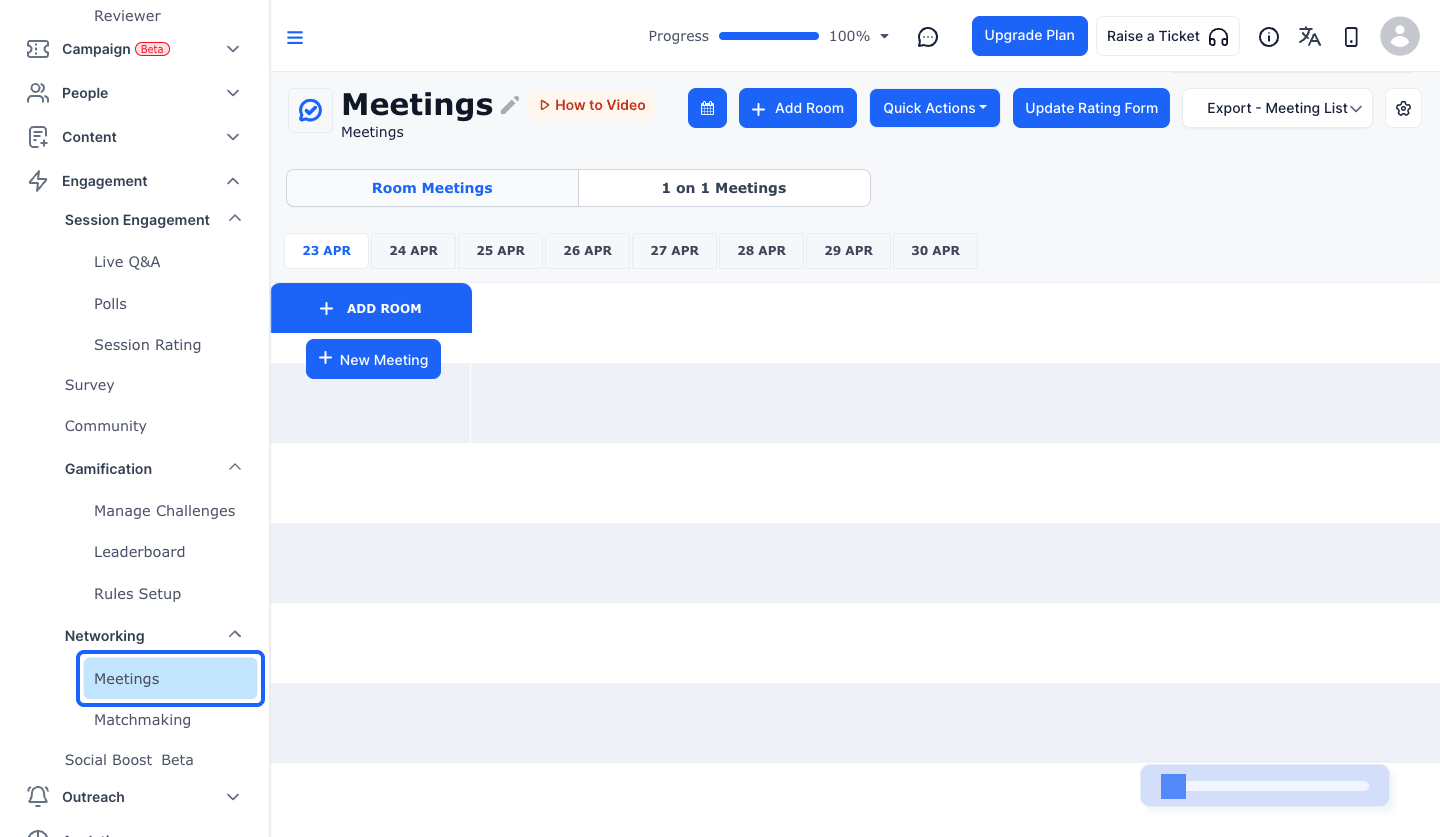
2: Click on "Room Meetings" to create Room Meetings
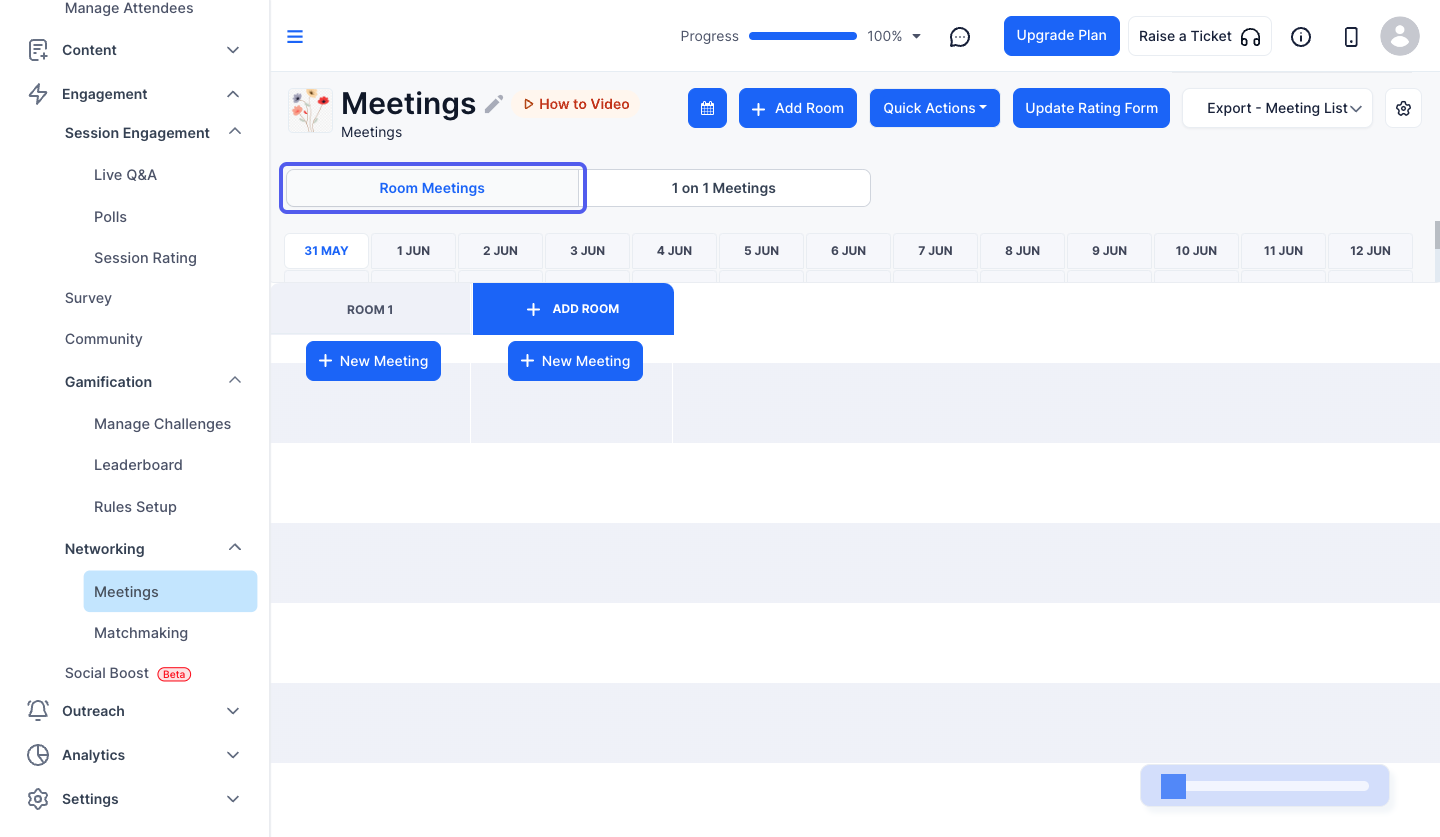
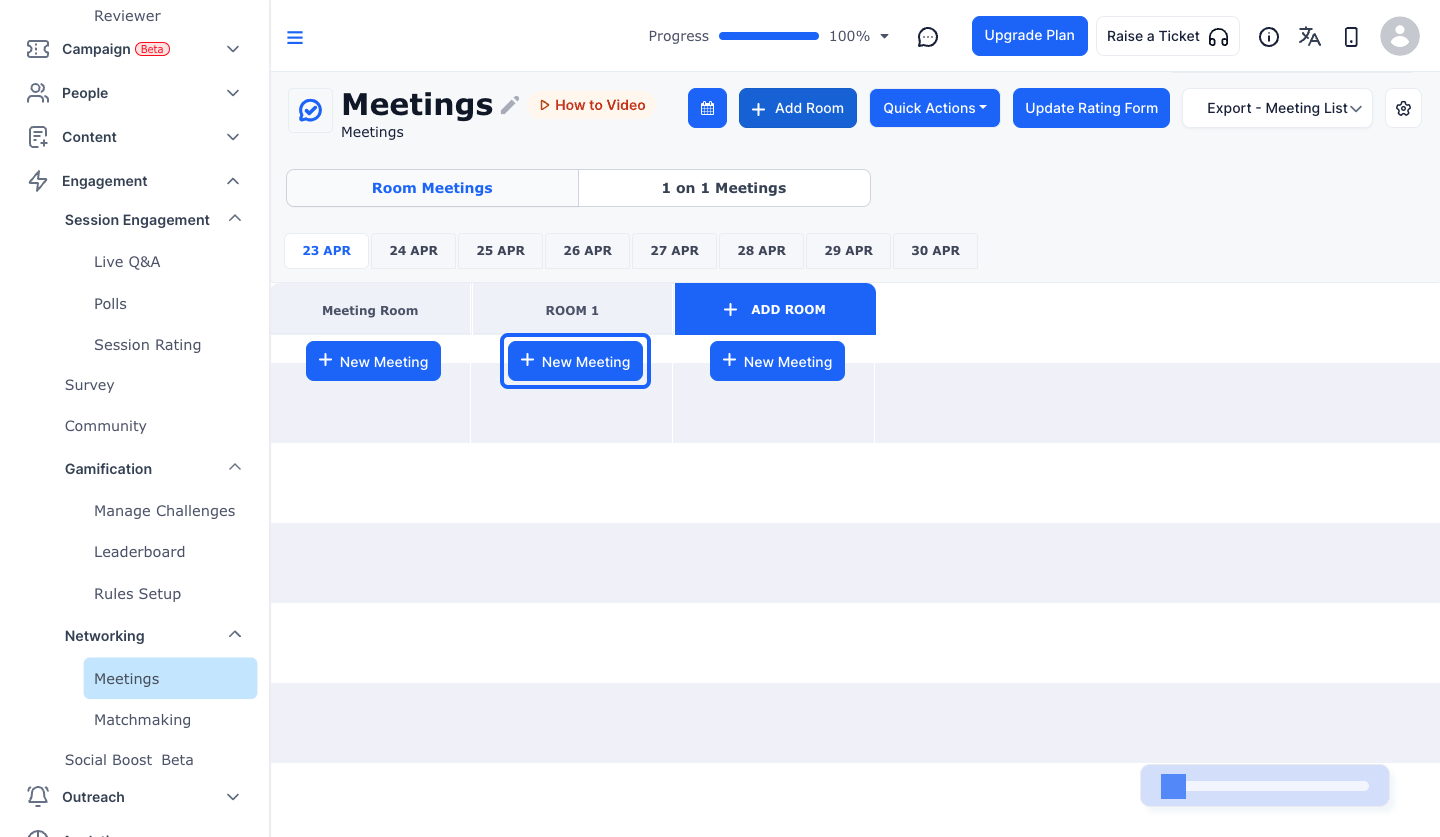
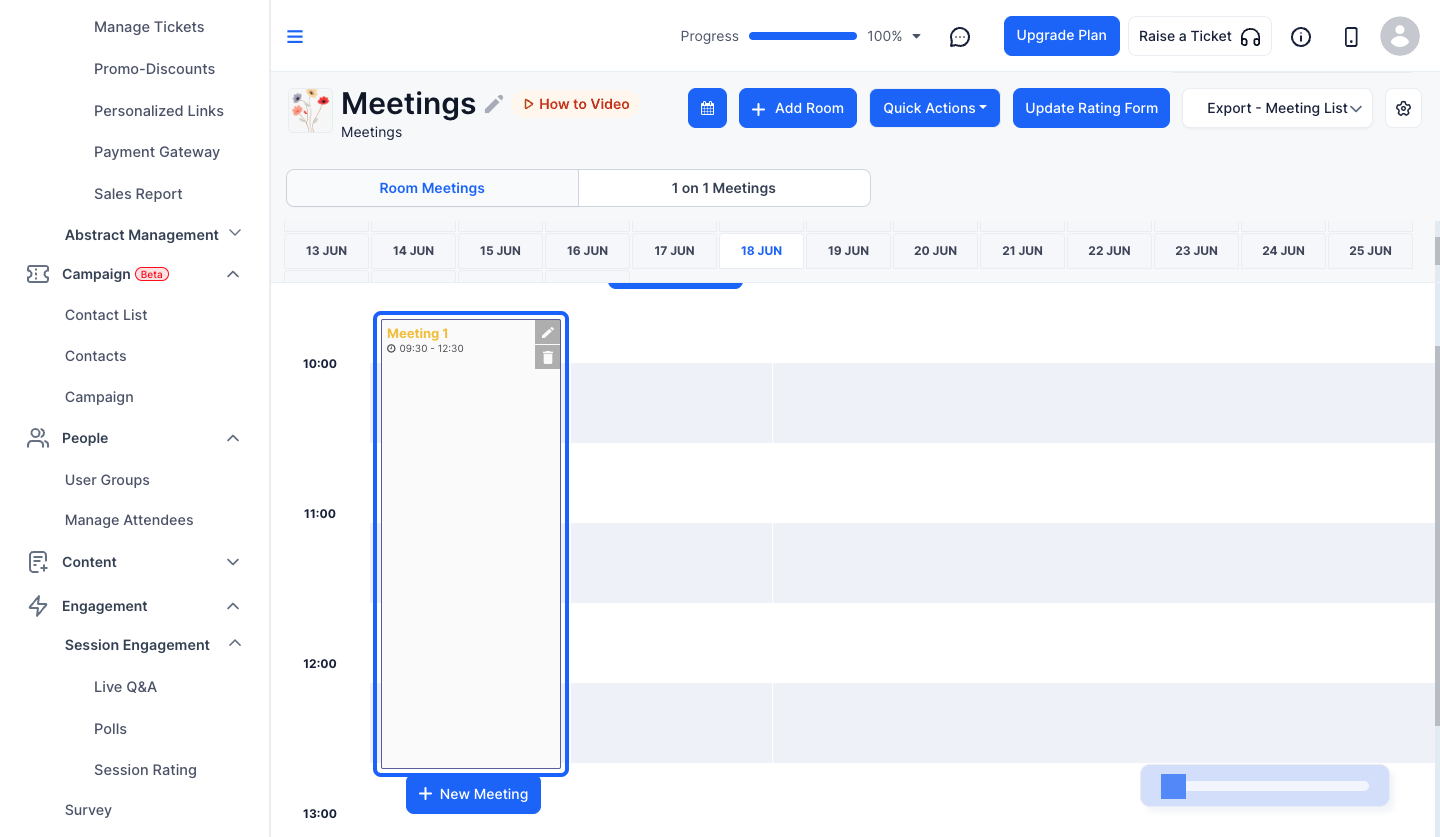
3: Click the “New Meeting” button to create a New Meeting
Note: You must mandatorily add a room before creating a new meeting, or use an existing one
4: If you want to making the meeting accessible to public, then select public meeting
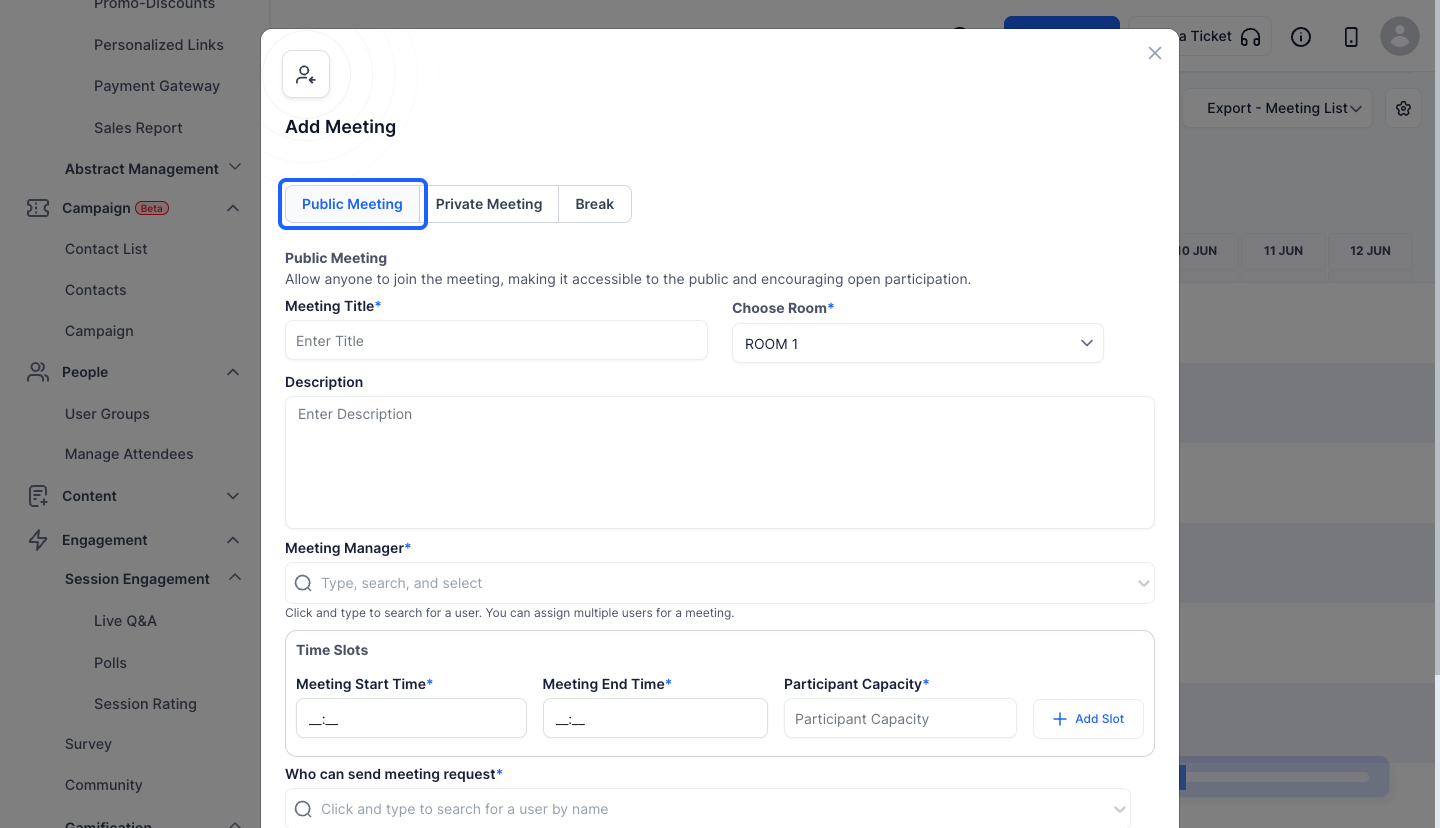
5: Enter the Meeting Title
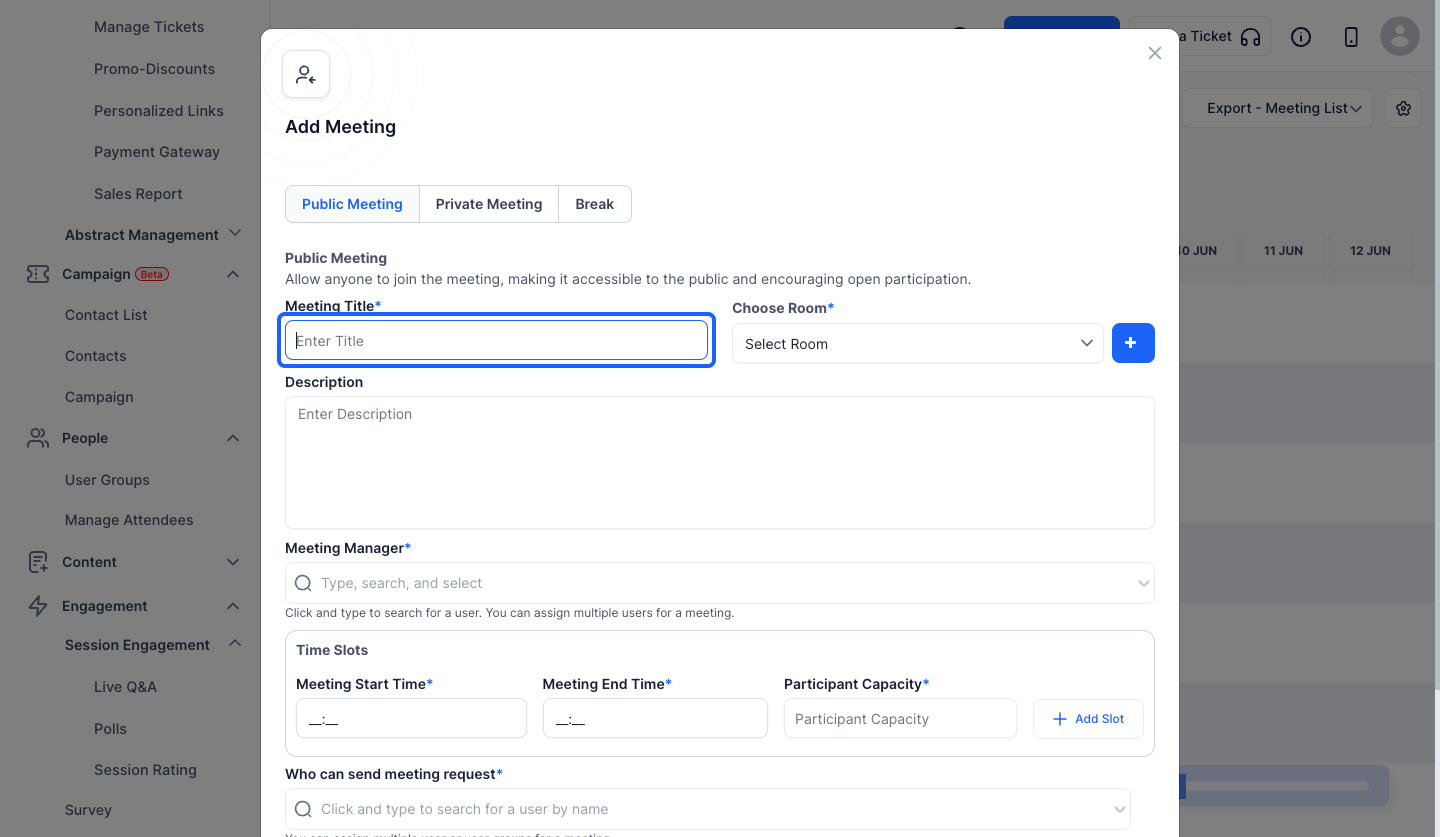
6: Click this button to create a new room
Note: If there are existing rooms then you will not get this button

7: You can add a description if required
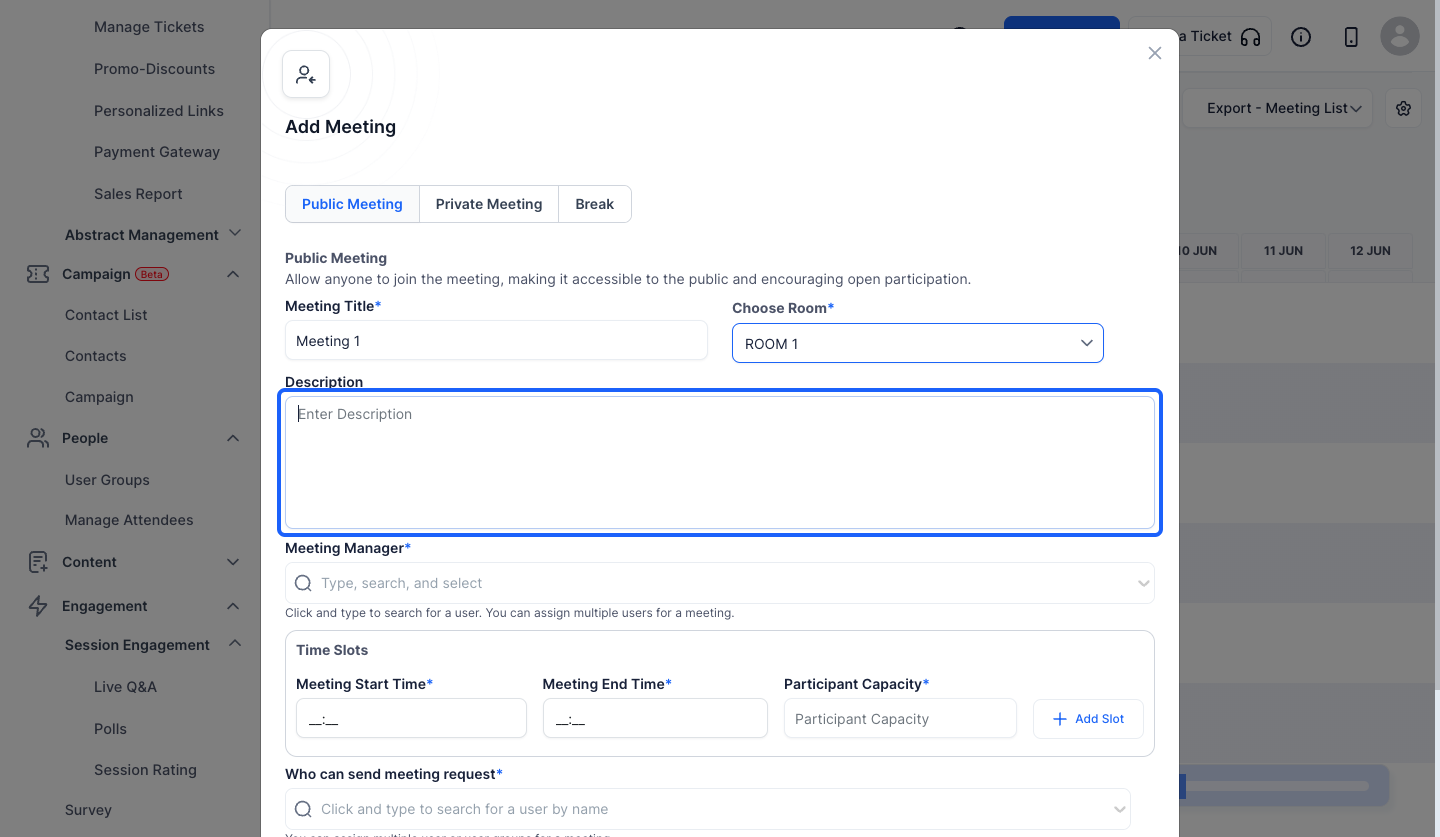
8: You can add one or more Meeting Managers

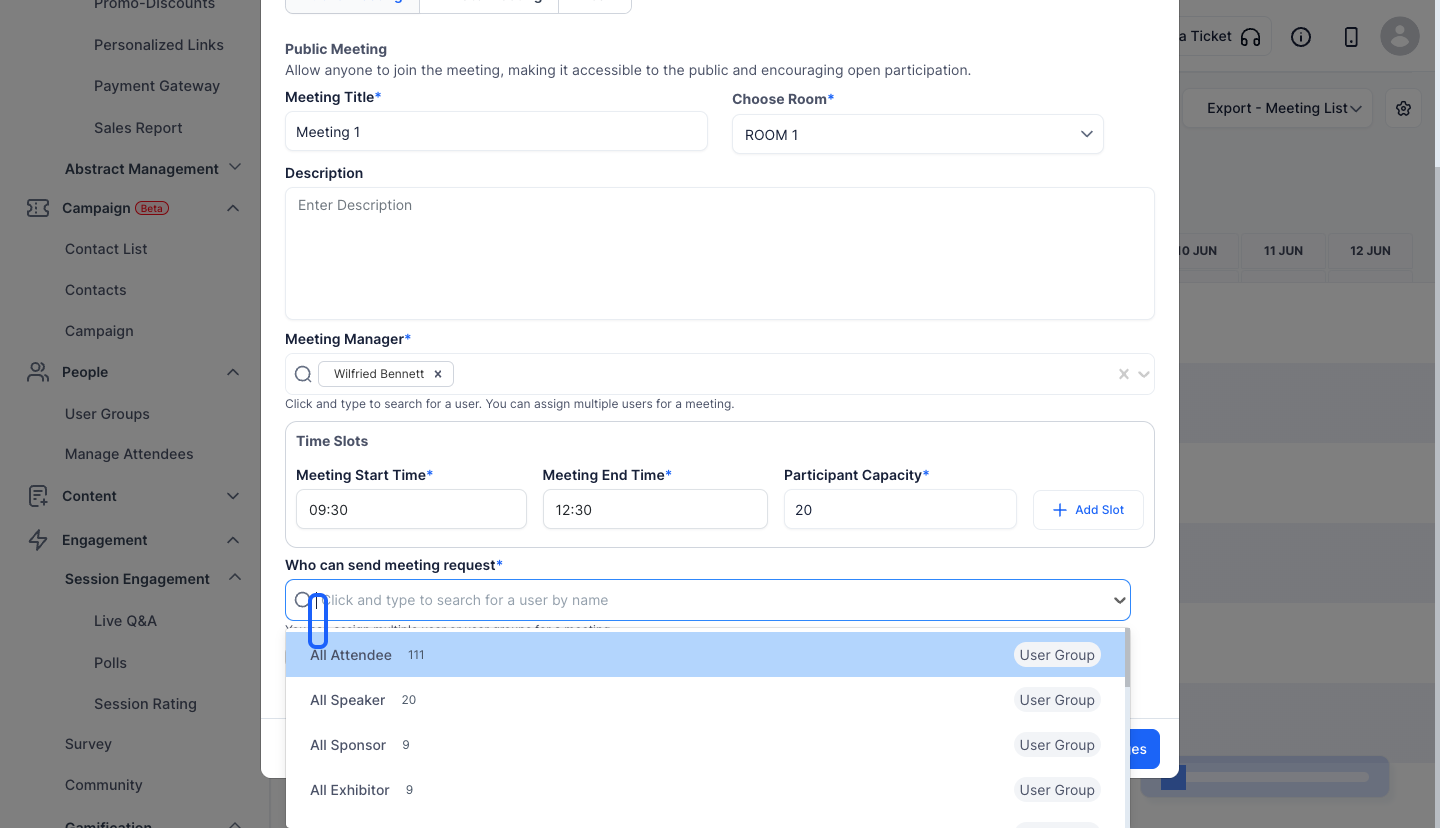
9: Enter the start time of the meeting

10: Enter the end time of the meeting

11: Enter the number of participants

12: Click the “Add Slot” button to add a new slot

13: Click the “Remove” button to delete the slots added

14: Select one or more user groups who can send meeting requests
15: Keep this checked to automatically approve meeting requests without manual intervention.
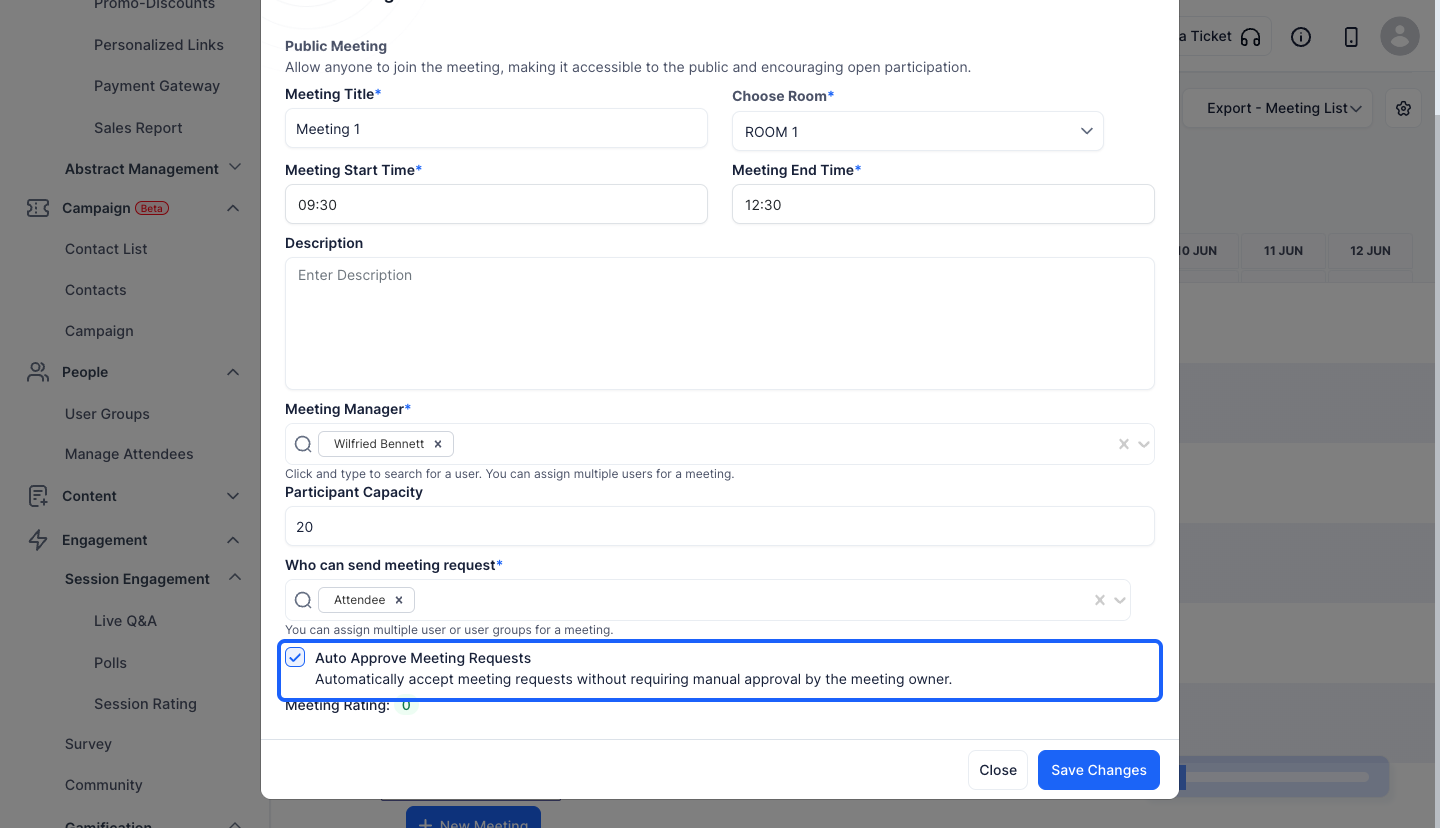
16: Keep this unchecked if you don't want to auto approve meeting requests

17: Click on the pencil icon to edit an existing meeting
18: Click the “Save Changes” button to create the meeting

