Ready to send your first email campaign? This guide walks you through the entire process — from choosing your audience to scheduling delivery. Make sure you have already set up your contact fields, contact lists, and added contacts before starting.
Step 1: Start Creating a Campaign
Step 1: Navigate to Campaign in the sidebar
From the Eventspot Admin Panel, click on Campaign in the left sidebar.
Step 2: Click on "Campaign" tab
Make sure you are on the Campaign tab (Email Campaign section).
Step 3: Click the "Create Campaign" button
Click the Create Campaign button to start creating a new email campaign.
Step 2: Choose Your Audience
Step 4: Select your campaign audience type
You will be asked to choose who this campaign is for:
Click the appropriate option. The remaining steps are the same for both audience types.
Step 3: Set Up Campaign Details
Step 5: Enter a Campaign Name
Give your campaign a descriptive name (e.g., "March Newsletter", "Event Reminder", "Thank You Email"). This is for your reference only — recipients will not see this.
Step 6: Enter your Email Subject
Type the email subject line that recipients will see in their inbox. Keep it concise and compelling.
Step 7: Set the From Name
The From Name is what recipients see as the sender. By default this is your event/organization name, but you can change it (e.g., to a person's name for a more personal touch).
Step 4: Design Your Email
Step 8: Choose to clone a template or create from scratch
You have two options for your email content:
For detailed instructions on using the template builder, see the article "How To Use the Email Template Builder?"
Step 9: Design your email content
Use the visual editor to create your email. Add text, images, buttons, and personalization variables. Remember to save your template when done.
Step 10: Click "Save Template" then "Save & Next"
Save your email template, then click Save & Next to proceed to recipient selection.
Step 5: Select Recipients
Step 11: Select a Contact Group
Choose which Contact List/Group you want to send this campaign to. These are the lists you created in the Contact Lists section.
Step 12: Click "Add Contacts" to select specific contacts
Click the Add Contacts button to open the contact selection modal. Here you can manually add contacts.
Step 13: Click "Save" to confirm your selection
After selecting your recipients, click Save.
Step 14: Click "View List" to verify recipients
Click View List to see the estimated list of users who will receive this campaign. Review it to make sure the right contacts are included.
Step 15: Click "Save & Next" to proceed to scheduling
Click Save & Next to move to the scheduling step.
Step 6: Schedule Your Campaign
You have four scheduling options:
Option A: Send Immediately
Choose Send Now to deliver your email within 2 to 30 minutes. Select the delivery window from the dropdown.
Option B: Send Before Event Starts (Reminder)
Choose Before Event to send a reminder email ahead of your event. Select:
The system will show the tentative send date based on your event date and the days-before setting.
Option C: Send After Event Ends (Follow-up)
Choose After Event to send a follow-up email after your event. Select:
The system will show the tentative send date based on your event end date.
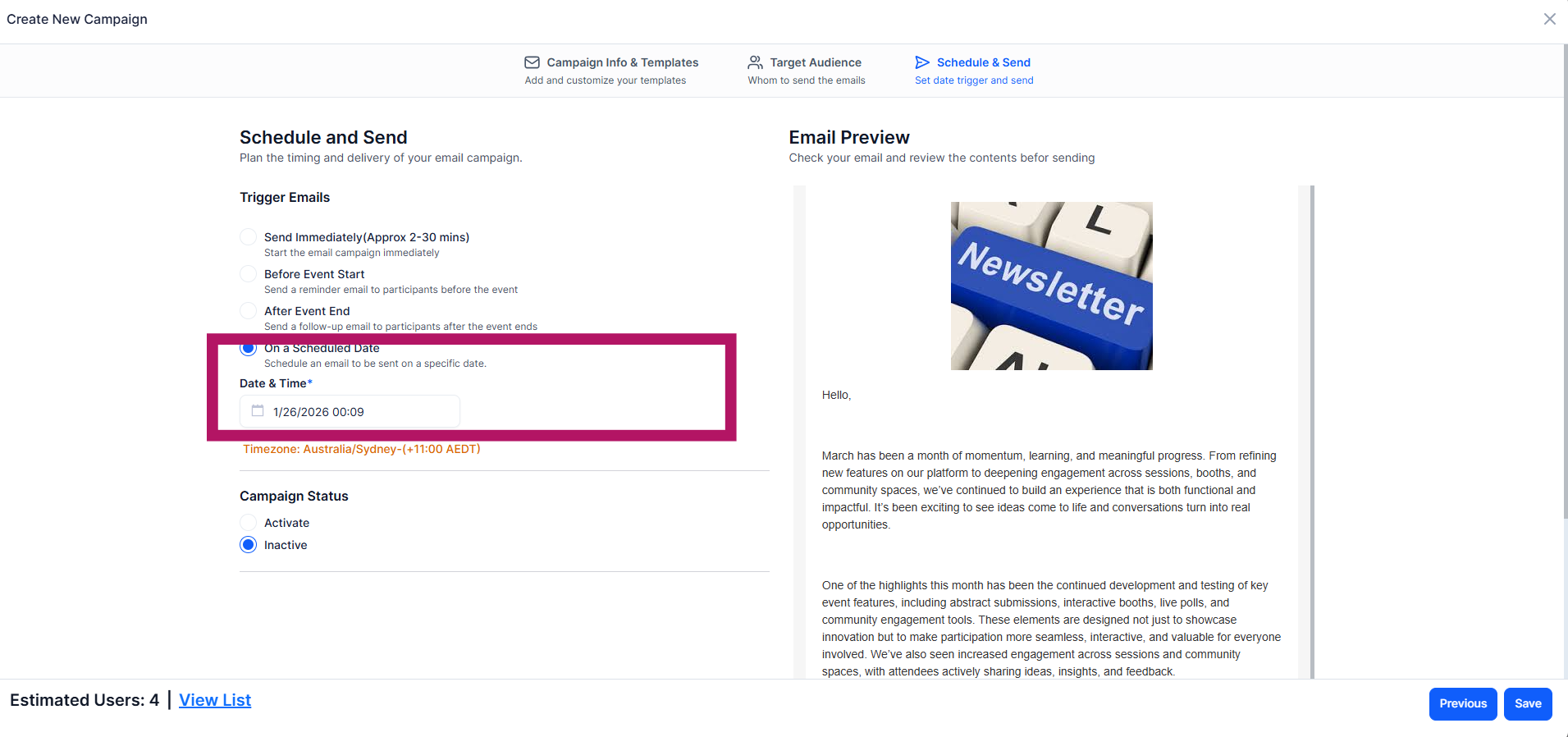
Option D: Send on a Specific Date
Choose Specific Date to set an exact date and time for delivery. Use the date picker and time selector to set your preferred schedule.
Step 7: Send a Test Email (Recommended)
Step 16: Send a test email before launching
Before activating your campaign, it is highly recommended to send a test email to yourself or a colleague. This lets you verify how the email looks in an actual inbox, check that variables are working, and catch any formatting issues. You can do this from the campaign actions menu.
Step 8: Activate and Save
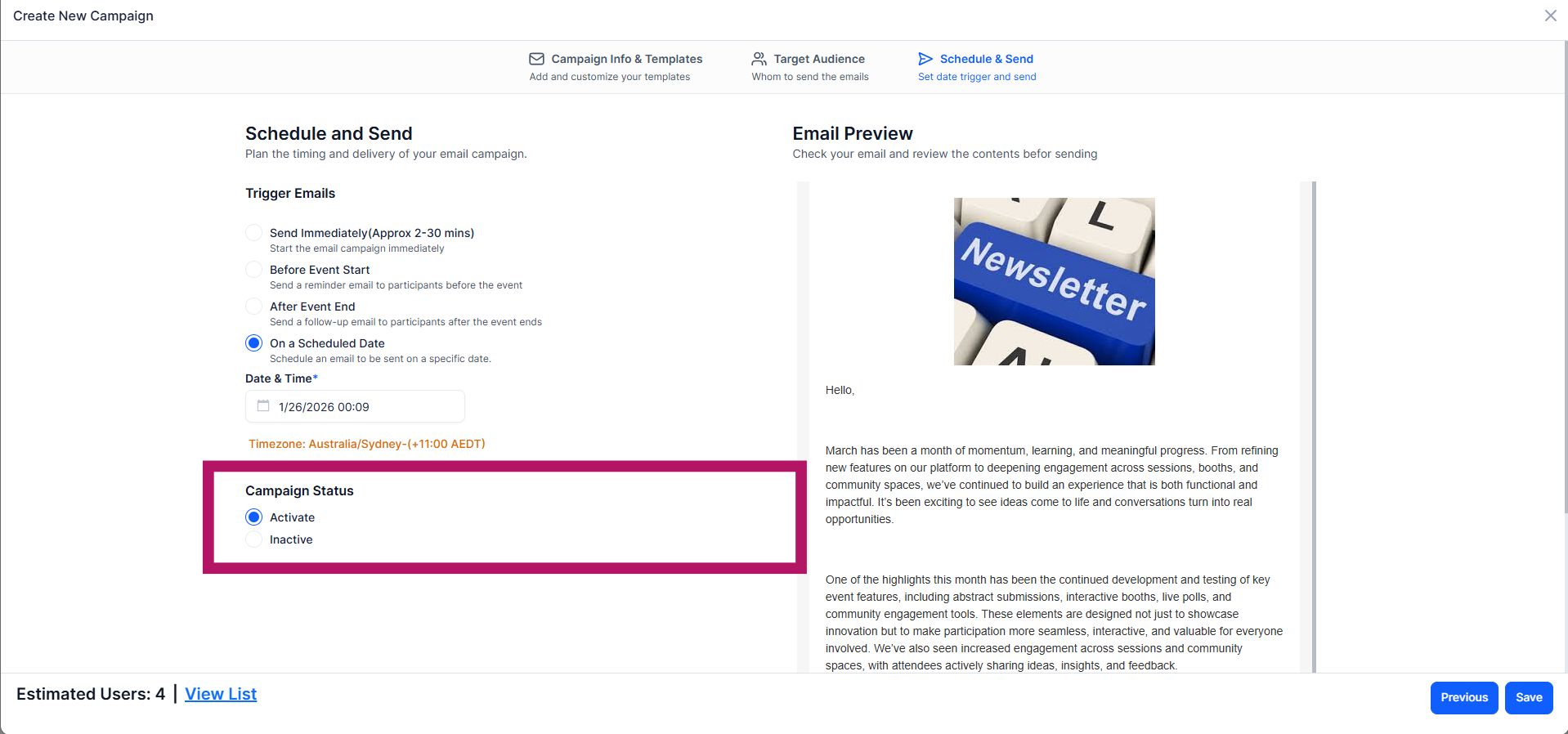
Step 17: Set the campaign status to Active
Toggle the campaign status to Active. If you set it to Inactive, the campaign will be saved as a draft and will not send until you activate it later.
Step 18: Click "Save" to create the campaign
Click the Save button to finalize and create your campaign. If set to Active with an immediate schedule, emails will begin sending shortly. If scheduled for a future date, the campaign will send automatically at the scheduled time.
What Happens Next?
Once your campaign is saved and active, here's what to expect:
Your campaign enters the sending queue : If you selected Send Now, emails will begin sending within the selected delivery window. For scheduled campaigns, delivery will begin at the set date and time.
You can track campaign performance : After sending begins, you’ll be able to monitor key metrics such as open rates and bounce/failure rates.
Contacts will receive your email based on your selected audience : Only the contacts you selected (via lists or manual selection) will receive the campaign.
You can revisit and review your campaign anytime : Navigate back to the Campaign section to view status, performance, or clone the campaign for future use.
Tips for a Successful Email Campaign
Write a Subject Line That Gets Opened : Your subject line determines whether your email gets opened or ignored. Keep it short (6 - 10 words ideally). Create curiosity or urgency.
Personalize Where Possible : Use personalization variables to make emails feel human
Keep Your Content Clear and Focused : Avoid overcrowding your email. One main message per email is fine. Also, use short paragraphs and make your call-to-action (CTA) obvious.
Always Include a Clear Call-to-Action (CTA) : Tell recipients exactly what to do next - Register Now, Join the Event, Download the Guide, etc.
Test Before You Send : Never skip the test email step. Check formatting on mobile and desktop. Confirm links are working.
Choose the Right Sending Time : Timing affects engagement. Mid-morning (9-11 AM) often works well. Avoid very late nights or very early mornings. Consider your audience's timezone.
Segment Your Audience When Possible : Instead of sending to everyone, send targeted messages to specific groups. This improves relevance and performance. You can create different email campaigns for this.
Don’t Over-send : Too many emails can lead to unsubscribers. Be consistent, but not overwhelming. Focus on value, not volume.
Monitor and Improve : After sending, review what worked (opens, clicks) and improve future campaigns based on insights.